
The draw.io Diagrams agent is now available in Rovo for all draw.io apps for Confluence Cloud, including the draw.io Zero Egress app. Ask it to create a diagram, change an existing one, answer questions about the diagram’s contents, check it for problems, or translate it.
The agent works with native draw.io diagrams, not images. Anything it creates opens in the draw.io editor like a diagram you’ve drawn yourself, so you can keep editing it by hand or by asking Rovo.
To try it, open Rovo chat in Confluence and choose the draw.io Diagrams agent.
Create a diagram from a prompt, a page or a photo
Describe what you need, start from a template, or upload a photo of a whiteboard or a sketch from your meeting notes. By default, the draw.io Diagrams agent will use the current Confluence page you are on for context. Once you’ve entered your prompt, it will show you a preview in the chat, and you decide whether to add it to the page.
- Open Rovo chat in Confluence and choose the draw.io Diagrams agent.
- Ask for a new diagram, or ask about or change one that’s already on the page.
- Check the preview in the chat and ask for any adjustments.
- Tell Rovo to save it to the page.
If you want more control, you can give Rovo custom instructions, knowledge and skills for your space. For example, you can set styles and shape libraries per diagram type, add your own review rules, choose which diagrams get consistency and sync checks, and list the languages each type of diagram should be translated into.
For example, on a page outlining the holiday request process for employees:
“Draw a flowchart of the holiday request process on this page.”
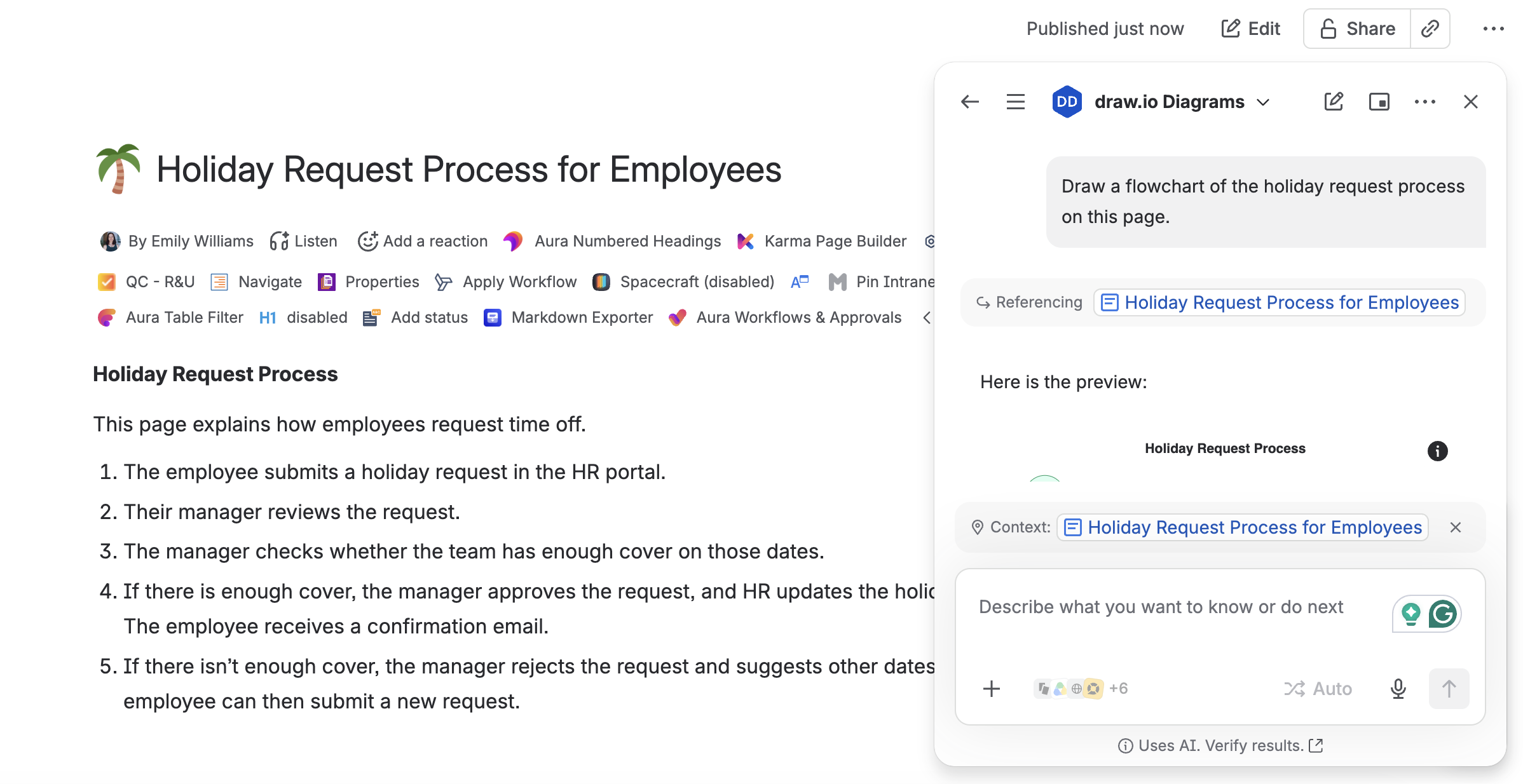
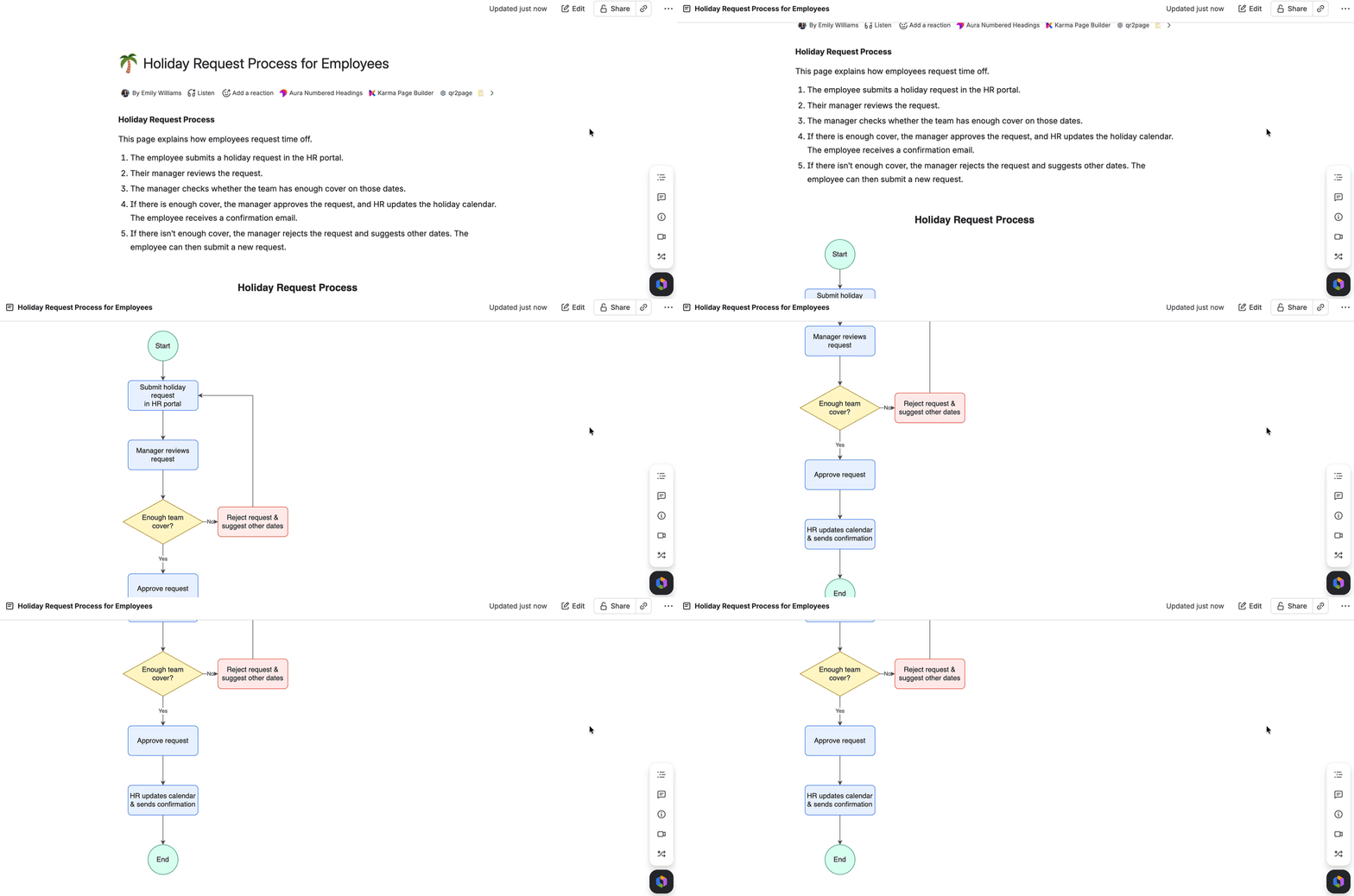
The agent can draw flowcharts, sequence diagrams, entity relationship diagrams (ERDs), mind maps, Gantt charts, Kanban boards, architecture diagrams, UML, org charts, network diagrams, mockups and floor plans. It also supports Mermaid diagram types and converts them into editable draw.io shapes.
It has access to the same 10,000+ shapes as the draw.io editor, including AWS, Azure, Google Cloud, Cisco, Kubernetes, BPMN and P&ID, as well as your organization’s custom shape libraries.
Edit an existing diagram
When you ask for a change, the agent edits the existing diagram instead of generating a new one. This applies to diagrams Rovo created and to diagrams your team created in the draw.io editor.
Using the previous holiday request process example:
“Add a step to notify the team after HR updates the holiday calendar. Also change the style to Vivid.”
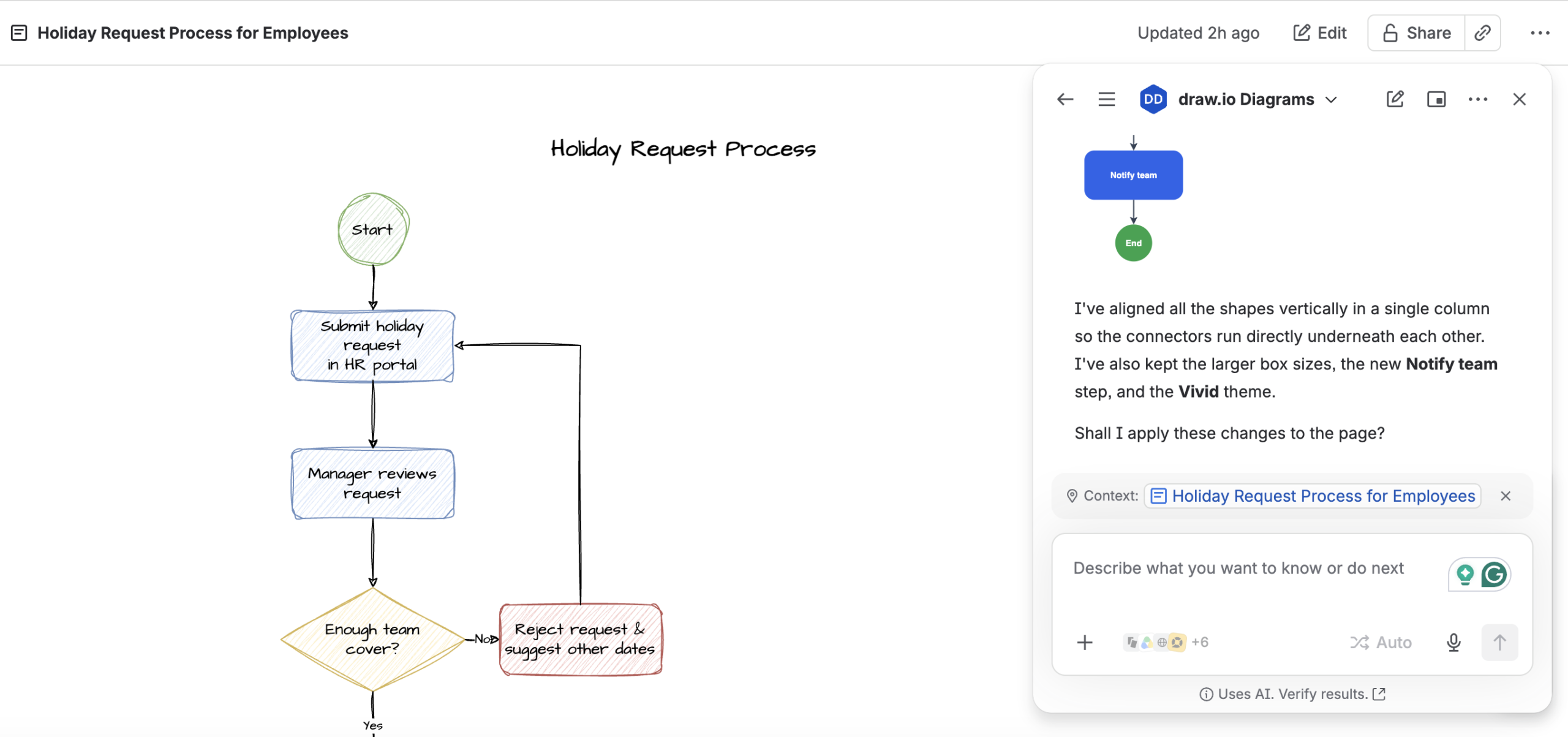
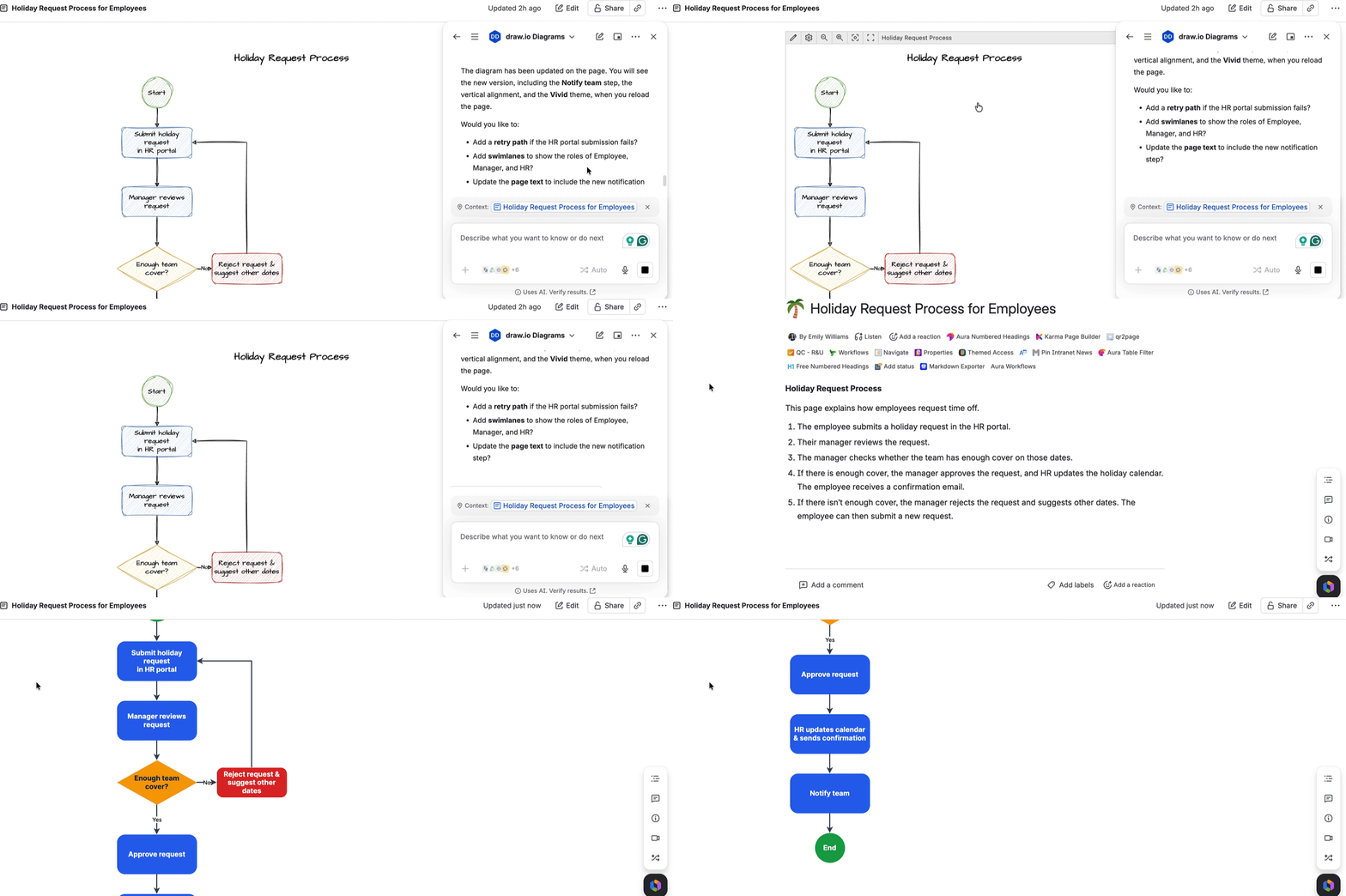
If someone else is editing the diagram, the agent won’t overwrite their work. If a change would replace a layout or style that a person set in the editor, Rovo checks with you first.
Change the style
You can restyle a diagram with one request, using one of our built-in themes (such as Atlassian, Professional, Vivid, Blueprint and Sketch) or your brand colors. Diagrams also follow Confluence’s light or dark mode.
Tip: To keep things consistent, ask Rovo to use one diagram’s style for all new diagrams in a space. Rovo will then use that style for every diagram it creates there.
Ask questions about a diagram
The agent can read diagrams as well as draw them. It looks at the shapes and how they connect, so you can ask about dependencies, paths and gaps.
On a page with a checkout services diagram, you might ask:
“Which services would be affected if the Inventory Database went down?”
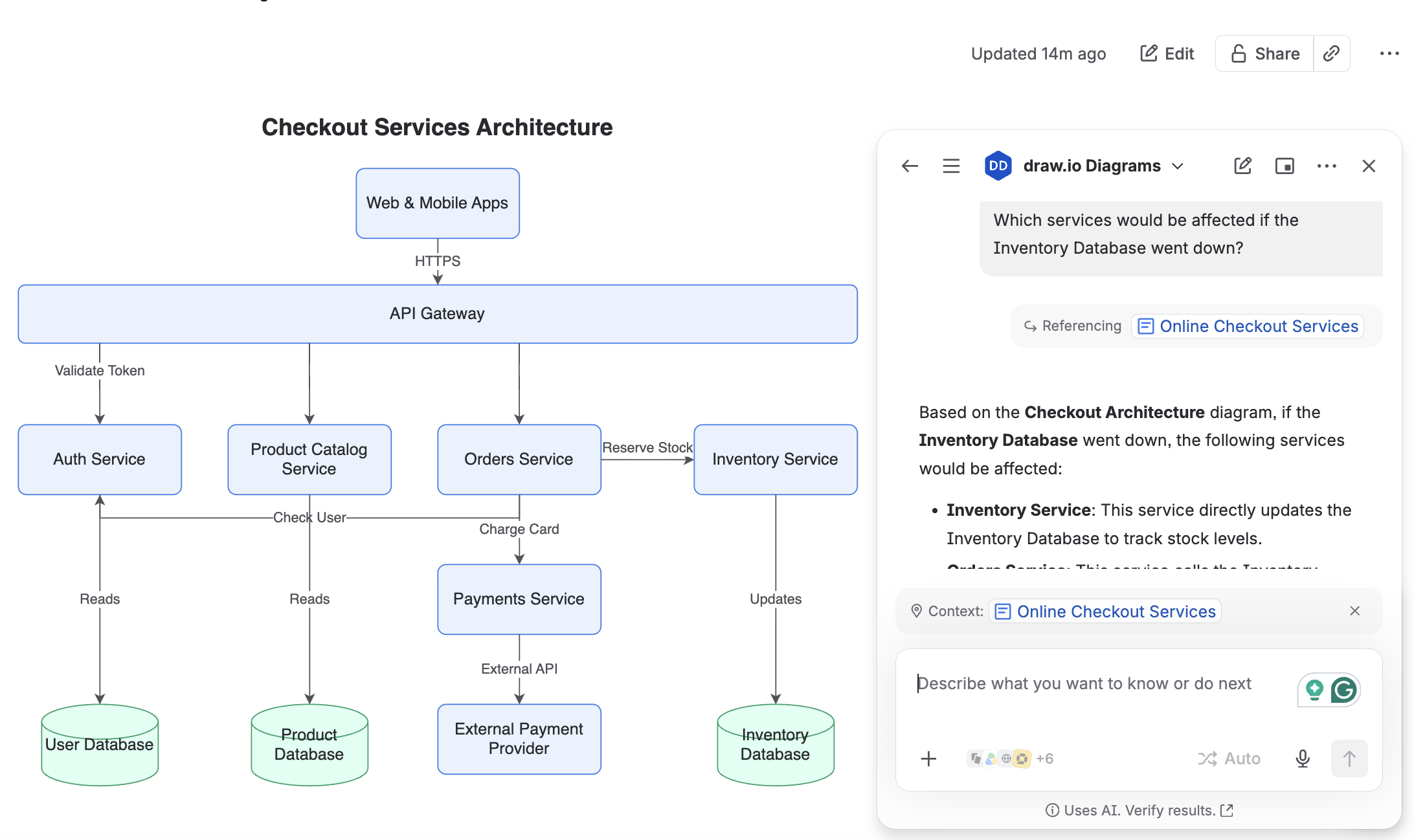
The agent’s full answer:
Based on the Checkout Architecture diagram, if the Inventory Database went down, the following services would be affected:
- Inventory Service: This service directly updates the Inventory Database to track stock levels.
- Orders Service: This service calls the Inventory Service to reserve stock when creating an order.
- API Gateway: Since the Orders Service depends on the Inventory Service, any checkout requests passing through the API Gateway to the Orders Service would likely fail.
Essentially, the entire checkout flow would be disrupted as stock cannot be reserved for new orders.
Review, update and translate diagrams
A few other things you can ask the agent to do with existing diagrams:
-
Review a diagram. It runs checks and flags things like flows with no clear start, dead ends, missing outcomes, unattached connectors, unlabeled branches, overlapping shapes and low color contrast.
-
Keep page text in sync. If a diagram and the text on the page no longer match, Rovo points it out and asks which one to update.
-
Rename across diagrams. Change a system or step name in every related diagram on a page, or across your whole site.
-
Write documentation. Generate first drafts of runbooks, test cases, checklists, changelogs or screen reader descriptions from a diagram
-
Translate. The agent adds translated label text and shape properties for each language and keeps the original. With
translateDiagramsturned on in the draw.io configuration, readers see diagrams in their own language.
Secure AI inside Atlassian
The agent is built on Atlassian Forge and runs inside Atlassian, using your organization’s Rovo. All AI processing is handled by Rovo under Atlassian’s security and privacy commitments. There’s no separate AI subscription or API key to set up. For more information, see Atlassian’s AI Trust Center.
The agent acts within your own Confluence permissions. It can only open and edit the pages and diagrams you have permission to open and edit.
Nothing on the page changes until you say so. Rovo shows you a preview of every new diagram and every edit in the chat. When you confirm, the diagram is saved and Confluence creates a new page version, so you can always go back.
The standard draw.io app for Confluence Cloud and draw.io Zero Egress use the same agent, so teams that don’t allow any data to leave Atlassian get the same features.
FAQs
Which draw.io apps include the draw.io Diagrams agent?
The draw.io Diagrams agent is available in all draw.io apps for Confluence Cloud, including the standard app (version 7.1 or later), the Advanced app edition, and the Zero Egress app (version 6.1 or later).
Can I edit diagrams the agent creates?
Yes. They’re regular draw.io diagrams, so you can edit them in the draw.io editor or ask Rovo to make changes.
Does the draw.io Diagrams agent use Rovo credits?
The draw.io Diagrams agent works through Rovo Chat, so using it counts toward your organization’s Rovo credit allowance. See How Rovo credits work for details on allowances and pricing.
Does the agent send data outside Atlassian?
The agent runs on Forge and uses your organization’s Rovo, so all AI processing is handled by Rovo under Atlassian’s security and privacy commitments.
Do I need a separate AI subscription or API key?
No. The agent uses the Rovo your organization already has.
Can I use the agent on a draft page?
Not on an unpublished draft. The agent needs a published page to add the diagram, so publish the page first, then ask Rovo again.
Want to dive deeper into the world of draw.io? Access our linktr.ee page to follow us on social media and learn how others use draw.io, as well as pick up some helpful tips and tricks. Not using draw.io yet? Convince yourself and start your free 30-day trial today. Or book a free no-obligation demo with our customer success team to learn more about how draw.io can make life easier and more productive for you and everyone in (and outside of) your company! Happy diagramming!