
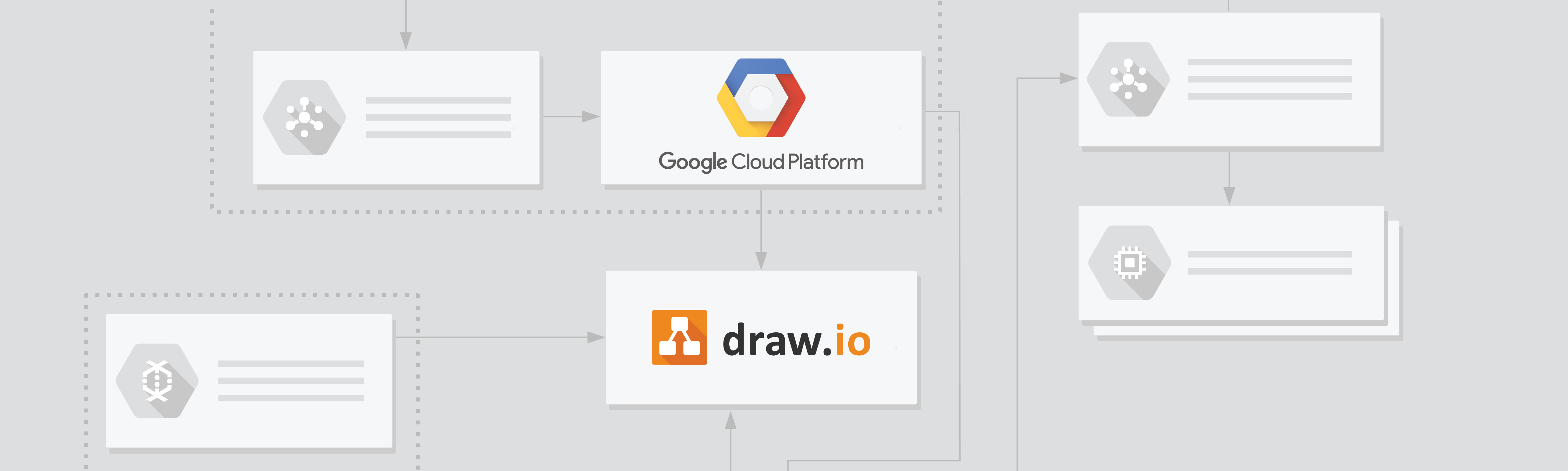
We’ve re-worked the Google Cloud Platform (GCP) icon set based on the feedback you’ve given us. You wanted the cards and symbols (plus text) bundled together, rather than having to assemble everything yourselves. That’s what we’ve done - we now support all of the extended shapes and graphics including: user and device cards, user paths, zones and zone groupings, product and expanded product cards, and service cards. After adding a card to the drawing area, you can move it into another position along with its icon and text. To edit the text, simply double click on it.
Use the GCP shape libraries
The GCP shape libraries will be automatically opened whenever you create a new diagram from a GCP template. If you just want to use the GCP shapes, you need to open their shape libraries:
- Click on More Shapes at the bottom of the left-hand panel.
- Scroll down to the Networking section and enable the Google Cloud Platform shape library.
- Click Apply.
GCP templates to plan and document your architecture
We’ve also added a number of GCP architecture diagram templates covering a huge range of industries and use cases - digital asset and content management, retail inventory management, backup/retrieval, disaster recovery, software development and testing, Internet of Things (IoT) and real time data processing, gaming and streaming architectures, data warehousing, big data and financial analyses, and many more. There are even architectures specifically for rare use cases like secondary analyses in genomics!
Create a new diagram to use a template
When you create a new draw.io diagram, you can choose to use a template.
- Create a new diagram and select the Cloud template collection on the left-hand side of the dialog.
- Scroll through and select the template you want to use. If you hover over the template, the name of the template file will tell you what it is used for.
- Click Create. Google has published a useful presentation with all of the GCP examples and a description of when to use each component. Have a browse through the presentation to see the full set of shapes and templates that you can use in draw.io to plan and document your GCP architecture. Below are just four examples from the extensive GCP template collection.