
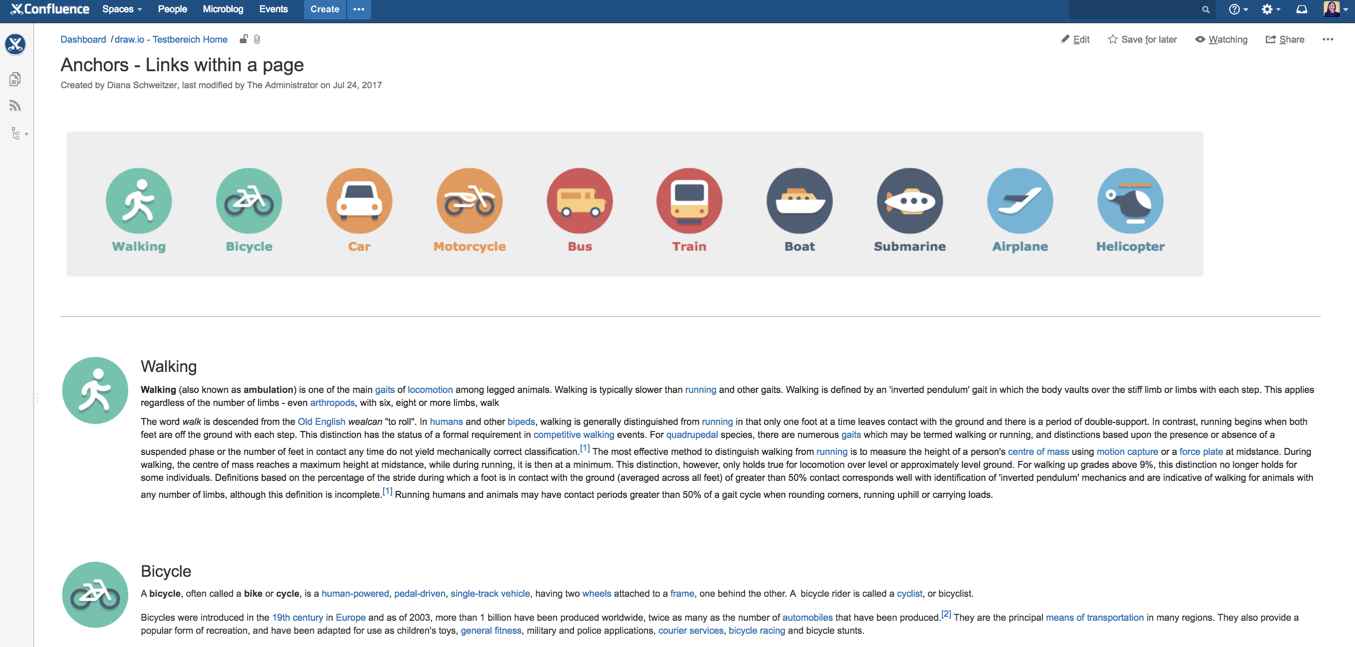
Confluence Server only If you are using Confluence, I’m sure you have extremely long pages, somewhere within your intranet. Anchors can make a long page more readable. You don’t want to have to scroll through the whole page to get an overview from the many headings. Of course, you can insert the table of contents macro and make the content easier to navigate for users. But text links are visually boring, and don’t encourage user engagement. Use draw.io to spice up a long Confluence page and capture the attention of your users. It helps users skim and scan faster, and also helps them learn and remember information more easily. Read more about why diagrams and visual content are better and more powerful than text.
Step 1 - Add headings
Anchor links within a page in Confluence only work when you have set headings. So, first you need to go through your page and add appropriate headings. You can link to any level of heading within a page. Important: Make sure you publish your page to make your Confluence instance generate the anchor links.
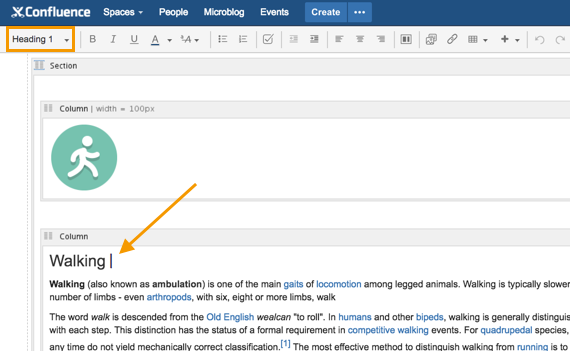
Step 2: Create your draw.io diagram and add links
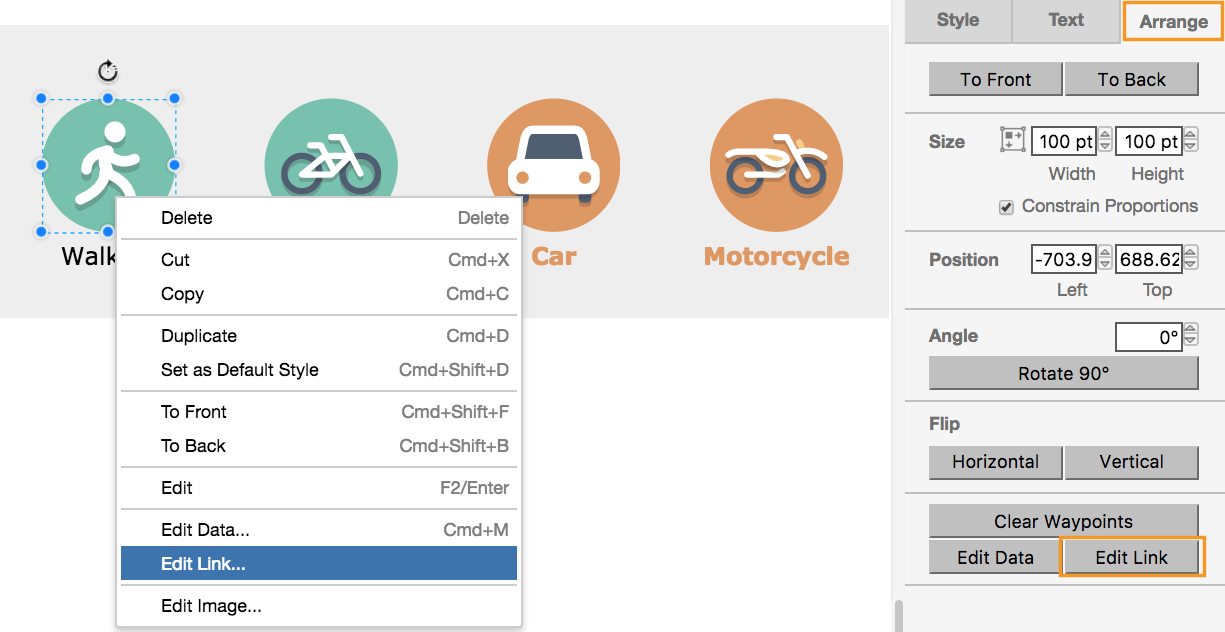
Edit the page again, and insert the draw.io macro, or type {draw then press Enter. Add the content of your diagram. To add a link to a shape, click the shape to select it, then either right click and select Edit Link, or go to the Arrange tab in the format panel on the right hand side and click Edit Link.
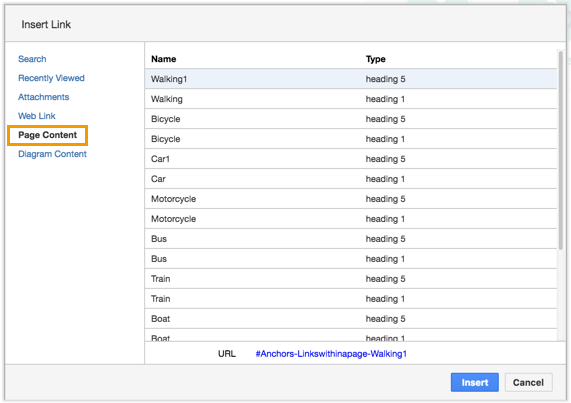
In the Insert Link dialog, click on Page Content in the left hand column to see all of the headings on the Confluence page, then select the heading you want to link to, and click Insert. Note: If you don’t see any headings in the list of** Page Content**, you will need to Publish the page to make Confluence generate the anchor links for the headings.
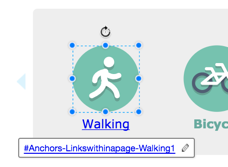
You can see when shapes are linked - when you select the shape, the link appears underneath it in the drawing area.
Want to see this in action? Watch the tutorial video below!
Need more help learning how to use draw.io? We have an extensive self-guided tutorial and a set of training videos that can help you get up and running in no time. If you are comfortable with the basic features, you can level up and start using keyboard shortcuts - keep our draw.io beginner cheat sheet handy.